Google Drive or Dropbox for your practice: organising project files so the client can find them
Project files do not have to travel by email. One folder per project, a fixed subfolder layout and a window for the client answer most of the “where is that floor plan” questions. The layout we have used for three years, and what a client portal changed.

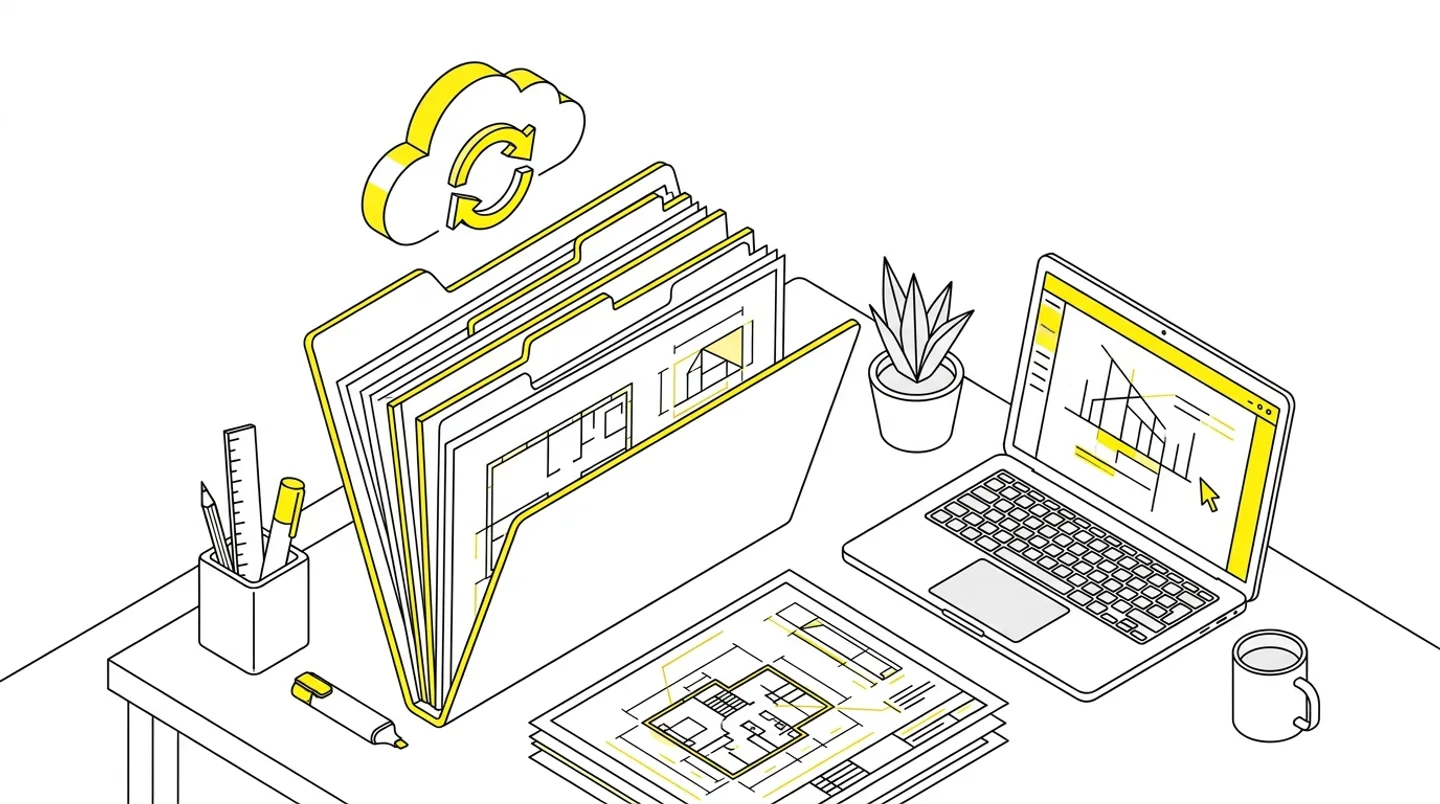
When I started the practice, project files lived in three places: my laptop, email attachments and the structural engineer’s USB stick. The client got floor plans by email and two months later asked whether “the one from last week” was the ground floor or the first floor. I answered by sending the file again. A third copy of the same PDF.
Today every project has one folder in the cloud, the same subfolder layout and a window for the client. Below is how it works and why it does not matter whether you pick Drive or Dropbox.
In short
- Drive or Dropbox: stay with what you already have. The client portal should connect to the existing folder.
- One folder per project, numbered subfolders 01–06 and a separate “Podpisane” (signed) subfolder.
- A file name answers three questions: what it is, which stage, which version. Never the word “final”.
- The client gets a read-only window into the folder instead of copies by email. For us that went from two hours a week to none.
Drive or Dropbox: a smaller decision than it looks
Both work. The choice depends on what you already have.
| Google Drive | Dropbox | |
|---|---|---|
| Wins when | the practice runs on Google Workspace | the team mostly works on large DWG files and models |
| What you get | mail, calendar and drive in one account, sharing by email address, comments in files | better syncing of heavy folders to local disks, a simpler permission model for outside people |
| Connecting to ArchiFlow | project folder via the Google Drive Picker | folder from the office Dropbox |
Do not switch providers for the sake of one tool. A good client portal should connect to what you have. ArchiFlow supports both: you pick the project folder with the Google Drive Picker or from the office Dropbox, and the files stay with you. The system keeps only the list and the links.
One folder per project, always the same layout
The layout we use:
2026-014 House in Zalesie/
  01 Inputs                 map, zoning decision, soil survey, client brief
  02 Concept                variants, visualisations, meeting notes
  03 Building design        site plan, architectural design, approvals
  04 Technical design       structure, services
  05 Authority              application, correspondence, decision
  06 Detail design          details, schedules
  Podpisane/                contract, amendments, statements after signing
Numbers up front sort the folders in every file browser. The project number with the year at the start of the name lets you search by number alone. The “Podpisane” (signed) subfolder is separate because documents after signing must not be mixed up with working versions.
We create this skeleton when the project is set up and do not change it later. If someone on the team needs a new subfolder, it goes inside an existing one, not next to it.
File names that survive three years
A file name should answer three questions: what it is, which stage, which version. Ours look like this: Ground floor plan_BD_v3.pdf. Stage as an abbreviation, version with a v. No date, because the file system provides it and we number versions anyway.
Two bans. We never use the word “final”, because “final2” always follows. We never leave export names like Drawing1-Layout2.pdf, because the client has no idea what they are opening.
What the client sees
The client does not need the whole folder. Not the working variants, not the DWG files, not the correspondence with the engineer. They need what is theirs:
- current floor plans,
- visualisations,
- the authority’s decision,
- documents to sign.
I used to do this by hand: copy selected files into a separate “for the client” folder and send a link. Copying means that after a revision the client still has the old version.
Now the client portal reads the project folder and shows files grouped by stage. When uploading from the panel I assign the file to a stage with one click, so the client sees “Ground floor plan” under “Building design”, not in a flat list. Files dropped straight into Drive show up too, just without a stage until I assign one.
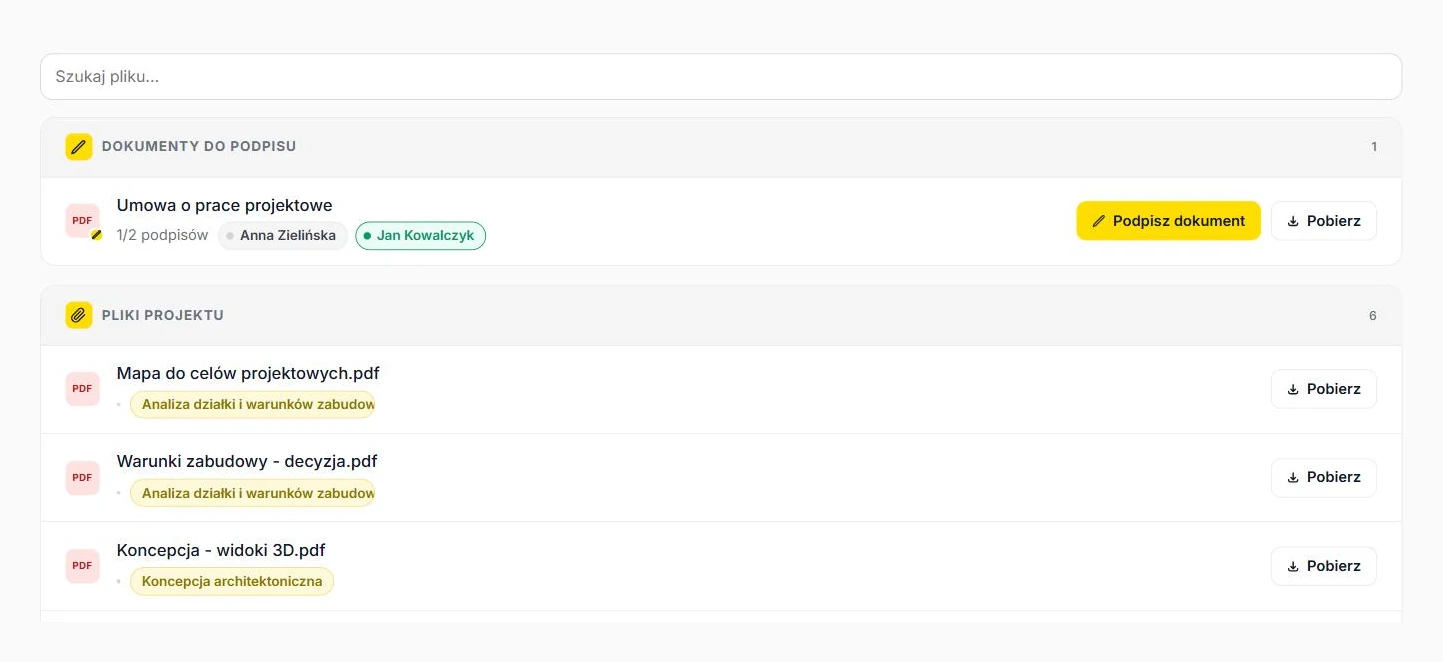
Two things turned out to matter more than I expected. The “New” tag on files added since the client’s last visit, so they do not scan the whole list. And the client downloading the file themselves, without asking. The number of “could you send me” emails dropped to a handful a month.
Signed documents go to their own subfolder
Contract, amendment, site manager statement. After signing with the trusted profile they land in the “Podpisane” subfolder, not next to the working version. If several people sign, the folder holds one file with all the signatures, because each person signs the previous person’s version.
Without this order, signed documents get lost among working PDFs and a year later nobody knows which file to show in a dispute.
Three mistakes I see most often
- The project folder on an employee’s private drive. When they leave, access disappears. The folder should belong to the practice account.
- “Anyone with the link can edit” permissions. Convenient, until a client accidentally moves the folder. The client should read and download, not edit. A portal that shows files read-only solves this without configuring permissions per file.
- Email attachments as the source of truth. Email is a notification, not an archive. The file belongs in the project folder, the email can carry a link.
Where to start
- Pick the provider you already have.
- Agree on one folder skeleton and save it as a template to copy.
- Name files so the client understands them.
- Give the client a window into that folder instead of sending copies.
For us that was a change from two hours a week of sending files to none.
ArchiFlow gives investors real-time visibility into project progress — through one link from the office, with a login if they want one. Ask your architectural office if they use ArchiFlow.
Learn more →